Translate

Mostrando postagens com marcador D365FO. Mostrar todas as postagens

quinta-feira, 3 de abril de 2025

Update script for service model: DIXFService on machine

 Caso encontre o erro Update script for service model: DIXFService on machine ao atualizar uma VM de DEV, faça o seguinte:

Acesse o link abaixo, faça o download do .Net e instale em sua VM:

Download .NET Framework 4.8 | Free official downloads

Reinicie a VM e continue o deploy do pacote via LCS!

quarta-feira, 2 de abril de 2025

DVT script for service mode: AOSService on machine.

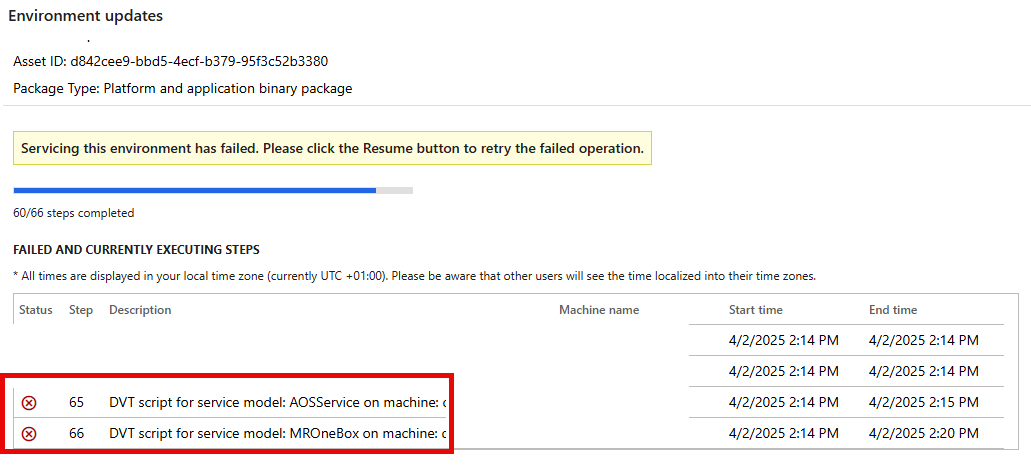
 Se você encontrar o erro abaixo ao aplicar um pacote em sua VM:

DVT script for service mode: AOSService on machine.


Aborte o processo atual, abra o "Full Dateils" de sua VM no LCS e execute o "Rotate Certificate" de sua VM.


Após concluir o rotate, aplique o pacote novamente!

Se ainda assim der erro, me chame!


quinta-feira, 20 de fevereiro de 2025

My DEV Virtual Machine

Here is how I create "MY" DEV VM for the D365F&O. 

There are a lot of different tutorials, tips, and tricks on how to improve the performance of the VM. This one works a lot for me. I hope it helps you, too!


LCS Cloud Hosted Environment Creation.

Go to your LCS Cloud Hosted Environment pages and click the + icon to add a new CHE.


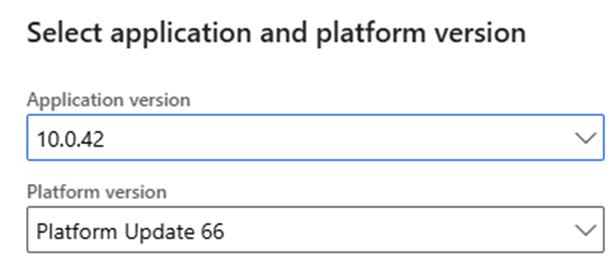
Select the version you need and click Next.


Choose the  “DEVTEST” type and click Next.

Now choose the “Develop” type and click Next.


Select your Azure subscription and click Next.


Please type the name of your CHE and choose its size. I suggest you use the DS12v2. It is a good size, and with some changes, you will have excellent performance at a reasonable price. After that, click on the “Advanced Settings” button.


In the Advanced Settings, go to the “Disk space configuration” and change the number of disks to 2, which is the minimum. Change the size to 127GB. Don´t worry about it now because the D365F&O database will be moved to a different disk in the following steps.


In the “Customize virtual machine names,” type the name of your CHE again. This way, the name on the LCS CHE page will match the name of the VM in the Azure portal.


After that, mark the checkbox and hit Next. The LCS will start creating the VM in the Azure Virtual Machines area.


Azure Virtual Machines Changes

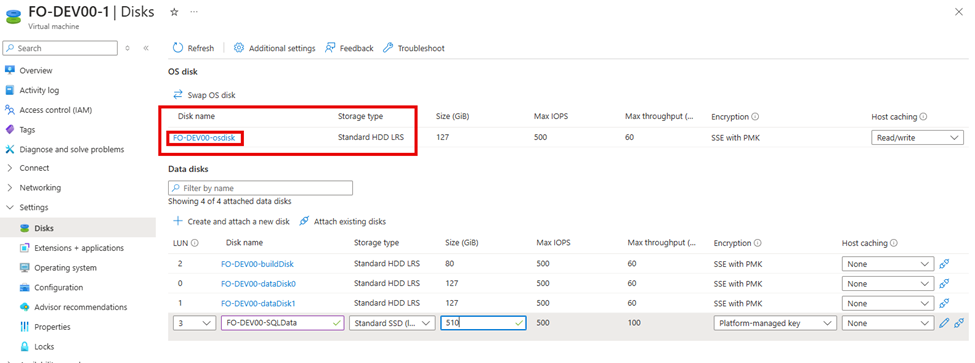
Open the Azure Portal, go to the Virtual Machines, and open the VM configurations created. Go to Settings > Disks and click “Create and attach a new disk.”


Type the disk's name and choose the size according to the size of the D365F&O database in your production environment. At the first moment, thinking about the first restore of a .bacpac file, I suggest you choose the SSD disk type. You can always change it whenever you need to. Click on the Apply button to save the changes.


With the VM deallocated, click on the “OSDISK”:


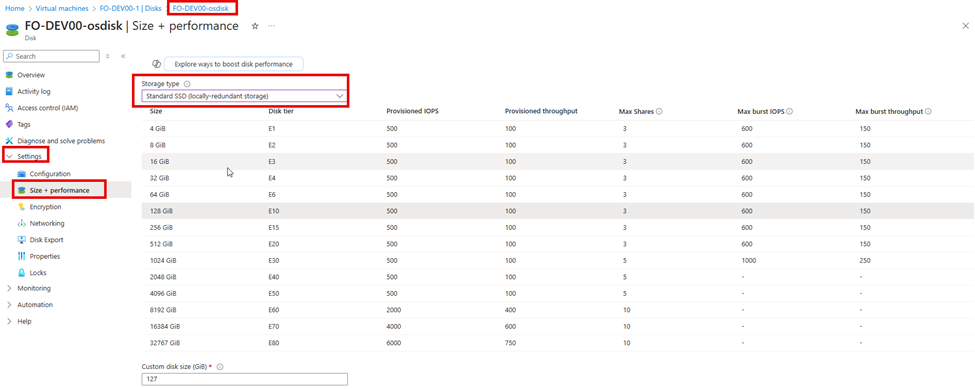
Now go to the OSDISK Settings, click the Size + Performance option, and change the “Storage type” from HDD to Standard SSD. This will significantly improve the performance of the Windows Server and, especially, Visual Studio!


Save the changes and start the Virtual Machine!


Virtual Machine internal changes.

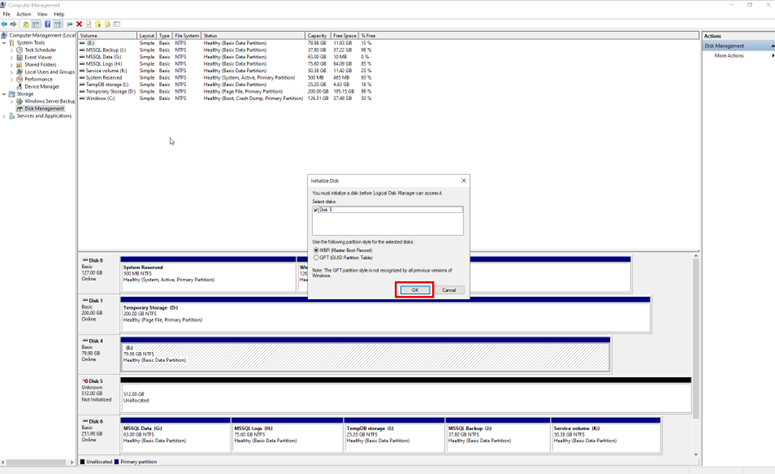
After connecting to the VM through RDP, the first step is to stop all the FO services. With all the services stopped, open the Computer Management and click the Disk Management option. You will see a message related to the new disk we created. Click OK to initialize the disk.


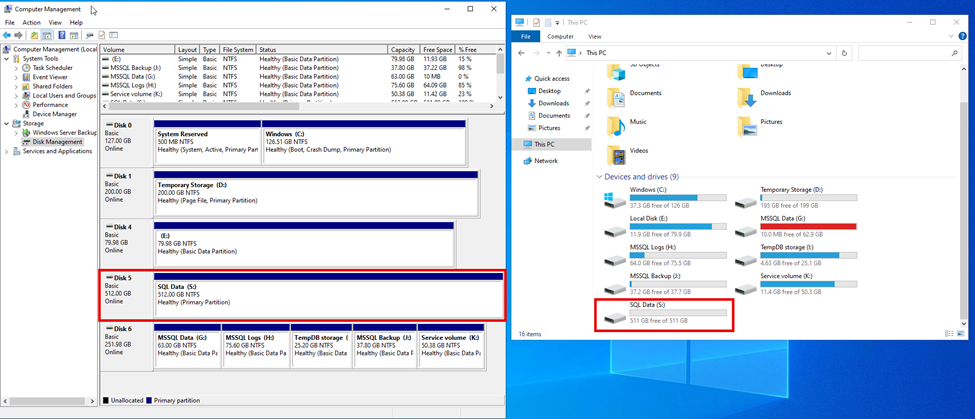
Right-click over the new Disk 5 and choose “New Simple Volume.”


 Follow the wizard, choose the size, the letter for use in the new disk, and the disk's label. This is the result:


The new SSD disk will receive all the database files. Create folders inside this new disk according to your preference. In the next step, we will move the database files from the G, H, and J disks to the new SSD disk, which in this tutorial is disk S:

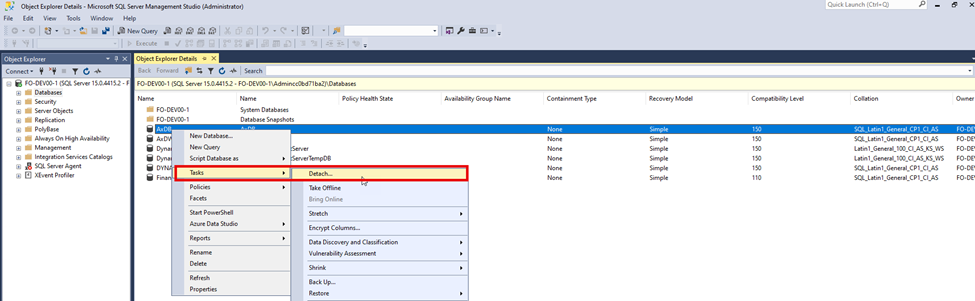
With all the D365F&O services stopped, open your SSMS and, detach all the databases, repeat the Dettach process to all the available databases:


With the SSMS empty, let's move the files:


Open the folders and copy\cut the MDF and LDF files from the “old disks” to the newly created disk:


While copying the files between the folders, open the SQL Server's “Properties” and change the database files' default folder. I am using a “SQL Backup” folder inside the K disk. In the next step, you will understand why. But you can choose any other disk that suits your preference!


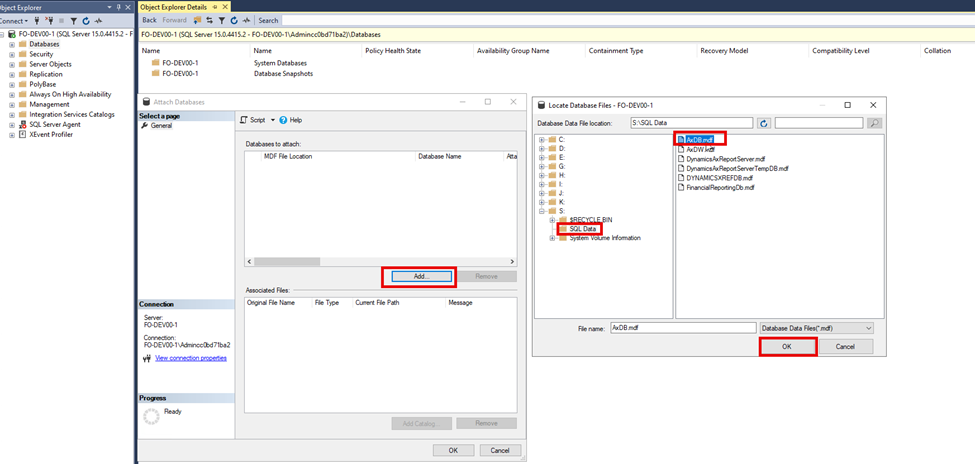
After to copy all the files, let´s attach the databases:


Repeat the attach process to all the databases; we will see the following screen at the end. Click ok and wait for it to finish.


Now we have all the databases online again:


Restart your Virtual Machine. When you connect again, all the services will be running. Validate the FO, open Visual Studio, and run your tests. If there is no issue, let's move to the last step.

The last step is to adjust the disk size. Here is what we have now:


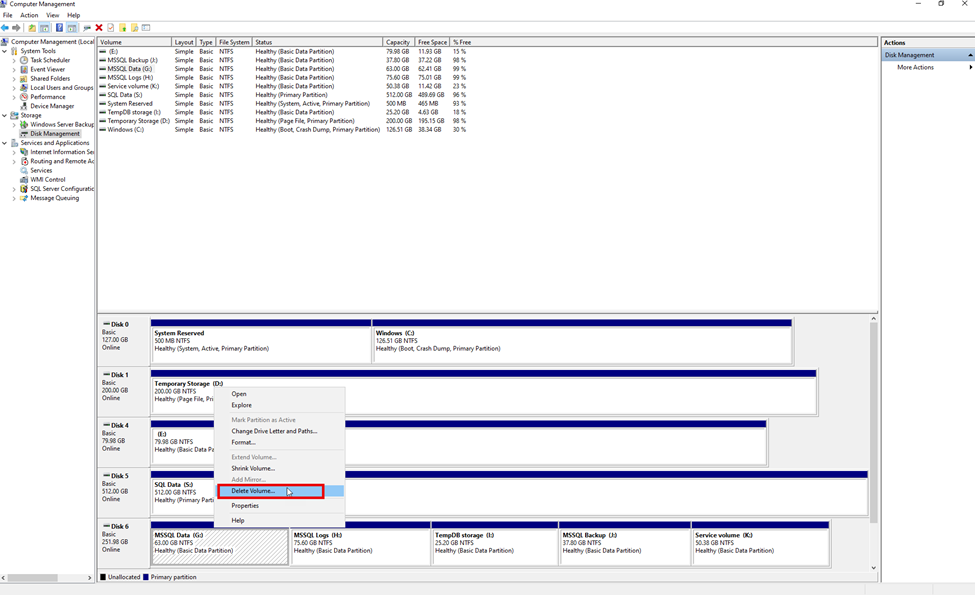
You can see that the K: drive does not have enough space. Open the “Computer Management” and “DELETE” the G, H, and J drives that are now totally empty:


Here is what we have after deleting the partitions:


Now we just need to extend the K partition, right-click on it, click extend, and follow the wizard:


    Here is the final result:


Now, the Virtual Machine is ready to be used with much disk space. The C: drive is an SSD type, giving S.O. and Visual Studio good performance. The database disk is SSD, also. Remember that you can change the disk type to HDD at any time to decrease the cost of the VM!

sábado, 15 de fevereiro de 2025

D365FO - Virtual Machine 10.0.41

 Boas pessoas,

Aos que utilizam maquina virtual localmente, em seus laptops, PCs ou servidor próprio, está disponível no LCS o VHD na versão 10.0.41!


Acessem a Shared Asset Library para fazer o download!

Vamos estudar e trabalhar pessoal!

O café ta caro!


quarta-feira, 23 de outubro de 2024

GlobalUpdate scrito for service model: MROneBox. Erro ao aplicar um Service Update do D365F&O.

 Se você está aplicando um Service ou Quality Update em sua VM e recebeu o erro abaixo:

GlobalUpdate scrito for service model: MROneBox

Olhando no log este erro é encontrado:

System.TypeInitializationException: The type initializer for 'Microsoft.Dynamics.Performance.Core.AuthenticationConfigSettings' threw an exception. ---> System.Configuration.ConfigurationErrorsException: Configuration system failed to initialize ---> System.Configuration.ConfigurationErrorsException: Unrecognized configuration section SqlAuthenticationProviders. (K:\MROneBox\MRInstallDirectory\Server\ApplicationService\web.config line 7)

Faça o seguinte...

Abra o arquivo "web.config" normalmente localizado no seguinte diretório:

K:\MROneBox\MRInstallDirectory\Server\ApplicationService\web.config


Procure por <configSections> e adicone o seguinte:

<section name="SqlAuthenticationProviders" type="System.Data.SqlClient.SqlAuthenticationProviderConfigurationSection, System.Data, Version=4.0.0.0, Culture=neutral, PublicKeyToken=b77a5c561934e089" />

Após a alteração seu arquivo web.config ficara assim:

Salve o arquivo e feche.

Continue com a aplicação do pacote e pronto!

Fonte: LCS

segunda-feira, 21 de outubro de 2024

Restaurar AxDB de uma VM para um ambiente Tier 2(PréProd ou Prod).

 É comum que antes de um D365F&O entrar em produção você precise pegar um banco de dados de um ambiente Tier 1, seja ele uma VM no Azure ou hospedada em seu servidor local.

Muitos testes e parametrizações são feitas na fase inicial, quando tudo está pronto para entrar em produção, esta movimentação é necessária.

Neste tutorial vamos preparar uma base de dados hospedada em minha VM de desenvolvimento e fazer o upload dela para o LCS.

Com o arquivo de backup disponivel no LCS, poderemos restaurar ela em um ambiente Tier 2 e consequentemente executar a restauração para o ambiente de produção!

Já existem diversos tutoriais na internet que tratam deste assunto. Registro este processo aqui simplesmente pelo fato de sempre ter funcionado em minhas atividades e para me servir de consulta em trabalhos futuros!

O primeiro passo para este processo é executar o backup de seu banco de dados em sua VM, depois você deve restaurar este backup também em seu SQL Server. 

Obs: Se você não souber fazer um backup/restore em seu SQL Server, larga tudo e me liga!!!

Ao final deste processo você terá 02 bancos de dados disponiveis, algo mais ou menos assim:


Detalhes importantes:

  • Nenhuma informação gravada de forma criptografada será migrada, é obrigatório recriar estas informações após a movimentação.
  • A collation do banco de dados DEVE ser a seguinte: SQL_Latin1_General_CP1_CI_AS

Agora precisamos "preparar" o banco de dados. Devemos executar o script abaixo, este script executará as alterações necessárias para que o banco de dados possa ser utilizado na nova estrutura de servidores onde ele ficará armazenado. Mais detalhes sobre as alterações você encontrará no final deste tutorial!

Script:

update sysglobalconfiguration

set value = 'SQLAZURE'

where name = 'BACKENDDB'

update sysglobalconfiguration

set value = 1

where name = 'TEMPTABLEINAXDB'

drop procedure XU_DisableEnableNonClusteredIndexes

drop procedure if exists SP_ConfigureTablesForChangeTracking

drop procedure if exists SP_ConfigureTablesForChangeTracking_V2

drop schema [NT AUTHORITY\NETWORK SERVICE]

drop user [NT AUTHORITY\NETWORK SERVICE]

drop user axdbadmin

drop user axdeployuser

drop user axmrruntimeuser

drop user axretaildatasyncuser

drop user axretailruntimeuser

drop user axdeployextuser

-- Clear encrypted hardware profile merchand properties

update dbo.RETAILHARDWAREPROFILE set SECUREMERCHANTPROPERTIES = null where SECUREMERCHANTPROPERTIES is not null

Depois de ter executado o script contra a base de dados correta, vamos exporta-la no formato .bacpac.

Eu tenho o costume de SEMPRE baixar o SQLPackage, já tive problemas com versões desatualizadas!

https://aka.ms/sqlpackage-windows

Obs2: Se não sabe, me liga!

Obs3: o D365fo.tool também pode ser utilizado neste caso!

SqlPackage.exe /a:export /ssn:localhost /sdn:AxDBToLCS /tf:c:\temp\AXDBToLCS.bacpac /p:CommandTimeout=4200 /p:VerifyFullTextDocumentTypesSupported=false /SourceTrustServerCertificate:True

Agora que temos o arquivo .bacpac de nosso banco de dados preparado após execução do script, é só fazer o upload dele para o LCS Assets.


Acesse seu LCS Asset Library, clique no sinal de + selecione as opções conforme o print abaixo e clique em "Add a File".
Selecione seu arquivo .bacpac e clique em Upload:
Aguarde o upload do arquivo e depois clique no botão "Confirm". Seu arquivo em breve estará disponivel no Assets do LCS!

Dica: Eu sempre uso uma VM no Azure, o upload é sempre mais rápido!


No LCS, escolha o ambiente Tier 2 a receber o backup, clique em "Mantain > Move Database".

Agora escolha a opção "Import Database":
Selecione o arquivo salvo no passo anterior, marque a caixa de seleção e clique em "Submit".

sábado, 19 de outubro de 2024

Utilizando o Graph como provedor de e-mails no D365F&O

 Não vou explicar a razão de se utilizar o Microsoft Graph como provedor de e-mails no D365F&O, você já deve ter notado que o Exchange já não funciona mais.

Utilizar o SMTP não é a melhor opção por questões de segurança, nos sobra o Graph!

Quais são os requisitos para se configurar o Microsoft Graph como provedor de emails no D365F&O?

Permissão "System Administrator" no ambiente do F&O.

Global Administrator no Tenant. Esta permissão é obrigatória para que seja possível executar o "Admin Consent" no App Registration que vamos criar. Você até pode criar o App Registration sem ser Global Administrator e apenas solicitar ao Global Administrator que conceda a permissão de Admin ao App criado!

Permissão no Azure para criar App Registrations.(Caso você não seja o Global Administrator)

Abra o Portal do Azure e acesse o App Registration, clique no botão "new App Registration":


Digite o nome que você achar melhor, mantenha o padrão nas demais configurações e clique no botão "Register":


Com o novo App Registration criado, na tela de Overview, anote o valor do campo Application (Client) ID:

Agora expanda a opção "Manage", clique em "API permissions" e depois clique em "+ Add a permission", por ultimo clique no icone do Microsoft Graph no lado direito da tela:


Pesquise por "Mail.send" e você verá a opção correta, marque a caixa de seleção e clique no botão Add Permissions:


Ainda na opção de API permissions, selecione cada uma das linhas e clique no botão "Grant admin consent for "Your company name".


Garanta que ambas as linhas estão "Verdes":


Agora no lado esquerdo clique em "Certificates & secrets", clique no botão "New client secret", escolha a descrição e a data desejada para a duração da nova secret. Esta data determinará a validade, se for muito curta, exigirá renovação!

Copie e salve com cuidado o "Value", você tem apenas uma change de o fazer, após fechar o portal do Azure este "Value" não ficara mais visível:


Vamos agora às configurações necessários no lado do ERP. Acesse a URL do seu F&O e abra o "System Administration > Setup > Email Parameters > Microsoft Graph Settings:

Informe o Application ID e o Application Secret(Value) que geramos nos passos anteriores e clique no botão "Save":


Nesta mesma tela, em "Configuration" clique no Graph e mova-o para o lado direto, escolha-o como provedor de e-mail para o Batch:


As configurações são simples, mas tenha atenção ao Graph, entenda seu funcionamento e as implicações relacionadas à segurança. Converse com seu time de TI para avaliar a melhor maneira de garantir a segurança utilizando o Graph como provedor de e-mail padrão no seu F&O.


Todos os passos descritos acima já estão amplamente divulgados em diversos outros blogs, adiconei este conteúdo aqui para, como sempre, facilitar minhas consultas futuras! Se quiser mais detalhes sobre o funcionamento do Graph no F&O, leia a documentação oficial encontrada neste link: Configure and send email - Finance & Operations | Dynamics 365 | Microsoft Learn

Se precisar de apoio nesta tarefa, basta entrar em contato!